Card Reader Mode
SEGA Game Configuration
The following configuration uses the HINATA public card reader server (
aime-ws.neri.moe) as an example. Please ensure your network environment can access Cloudflare services.
Configure Segatools
First, deploy HINATA AimeIO to your game. Then configure the remote card swiping server, either by directly editing the text file or by using the HINATA Client GUI.
ini[aime] enable=1 [aimeio] path=hinata.dll serverUrl=wss://aime-ws.neri.moe/REPLACEME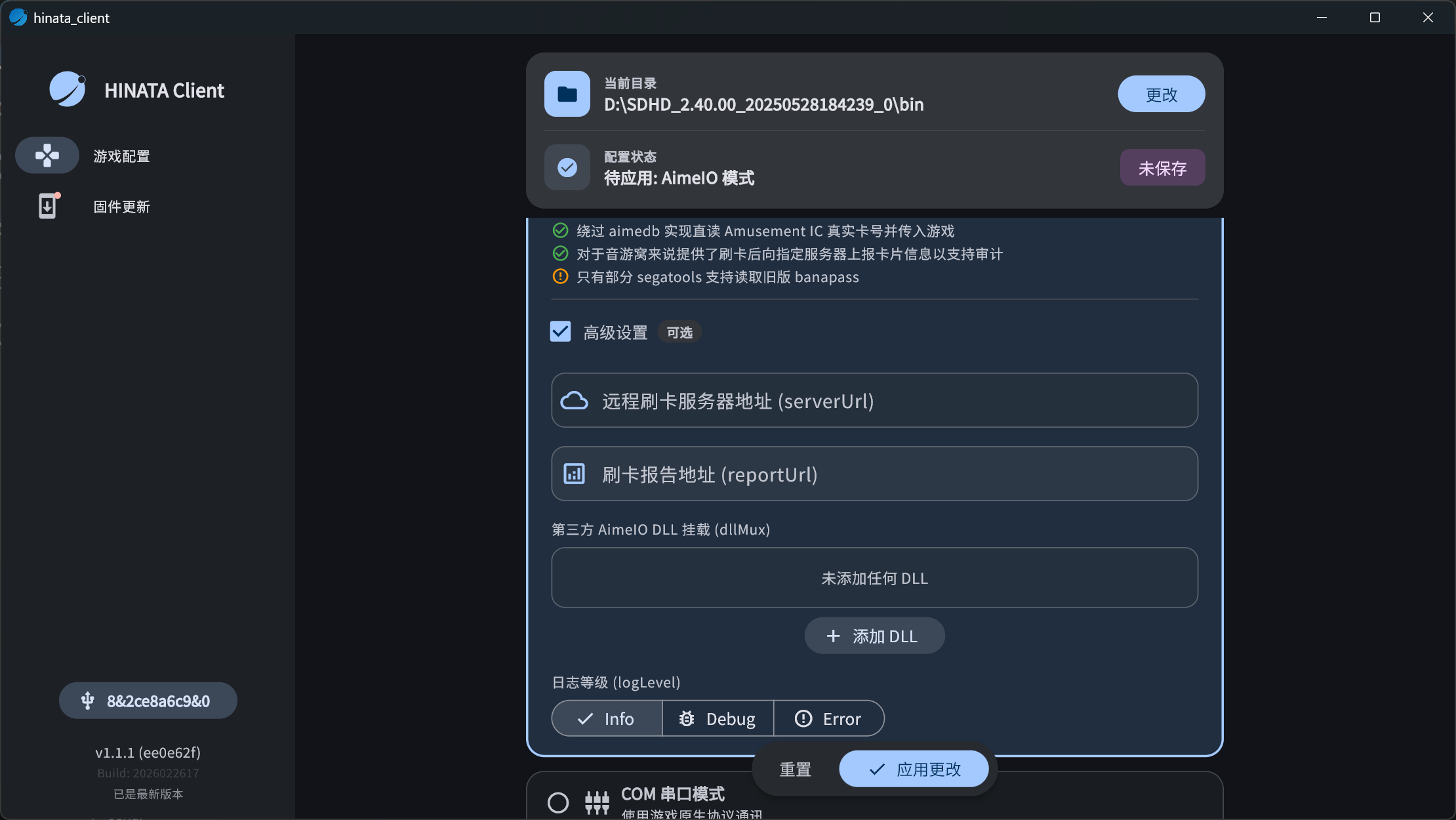
Replace
REPLACEMEwith a custom English string and make sure it is unique enough to avoid conflicts with others.Download the latest version of HINATA Go from Download, install, and open it.
Add an Instance in the app. Choose any name and set the URL to
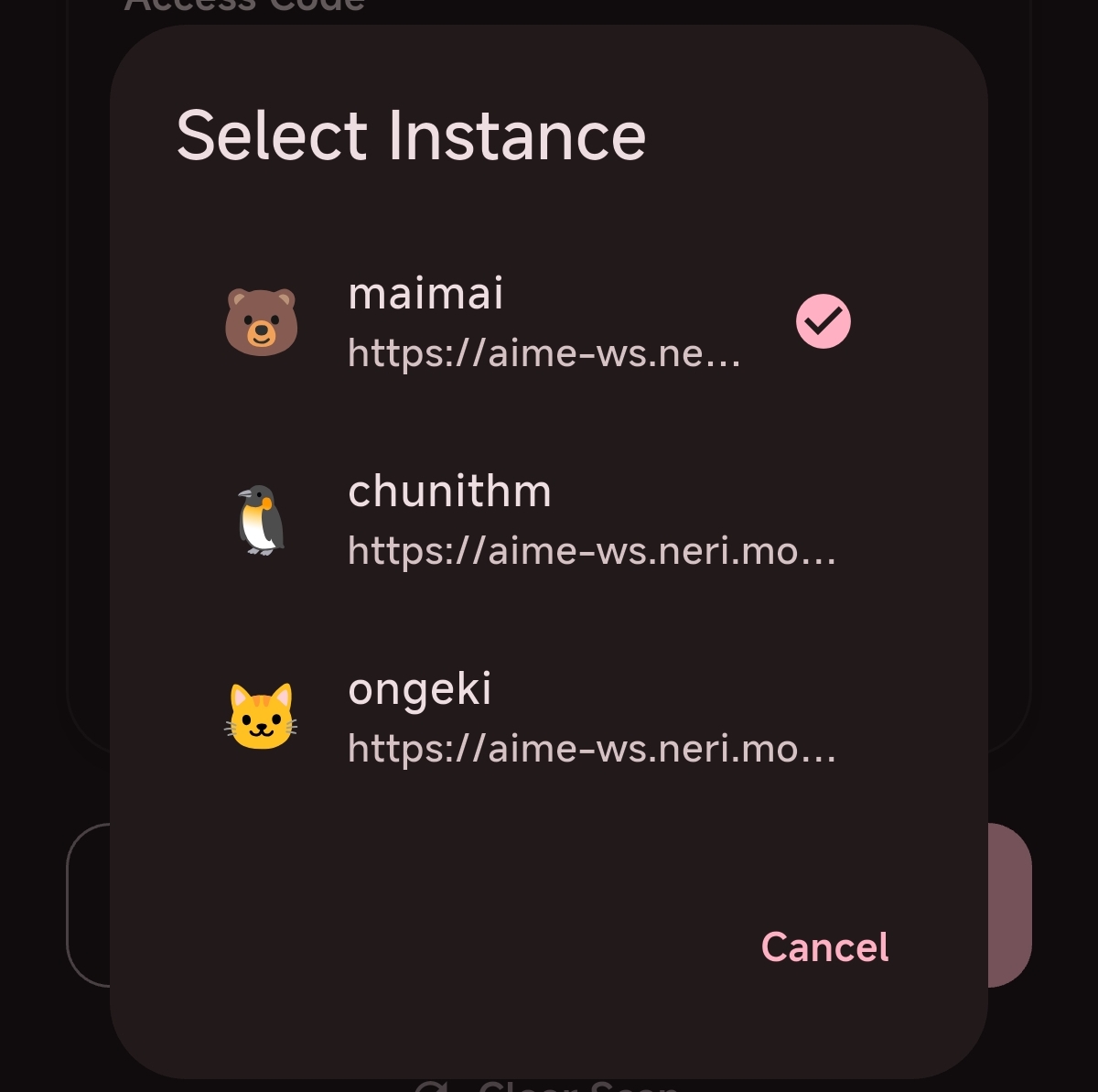
https://aime-ws.neri.moe/REPLACEME, as shown below: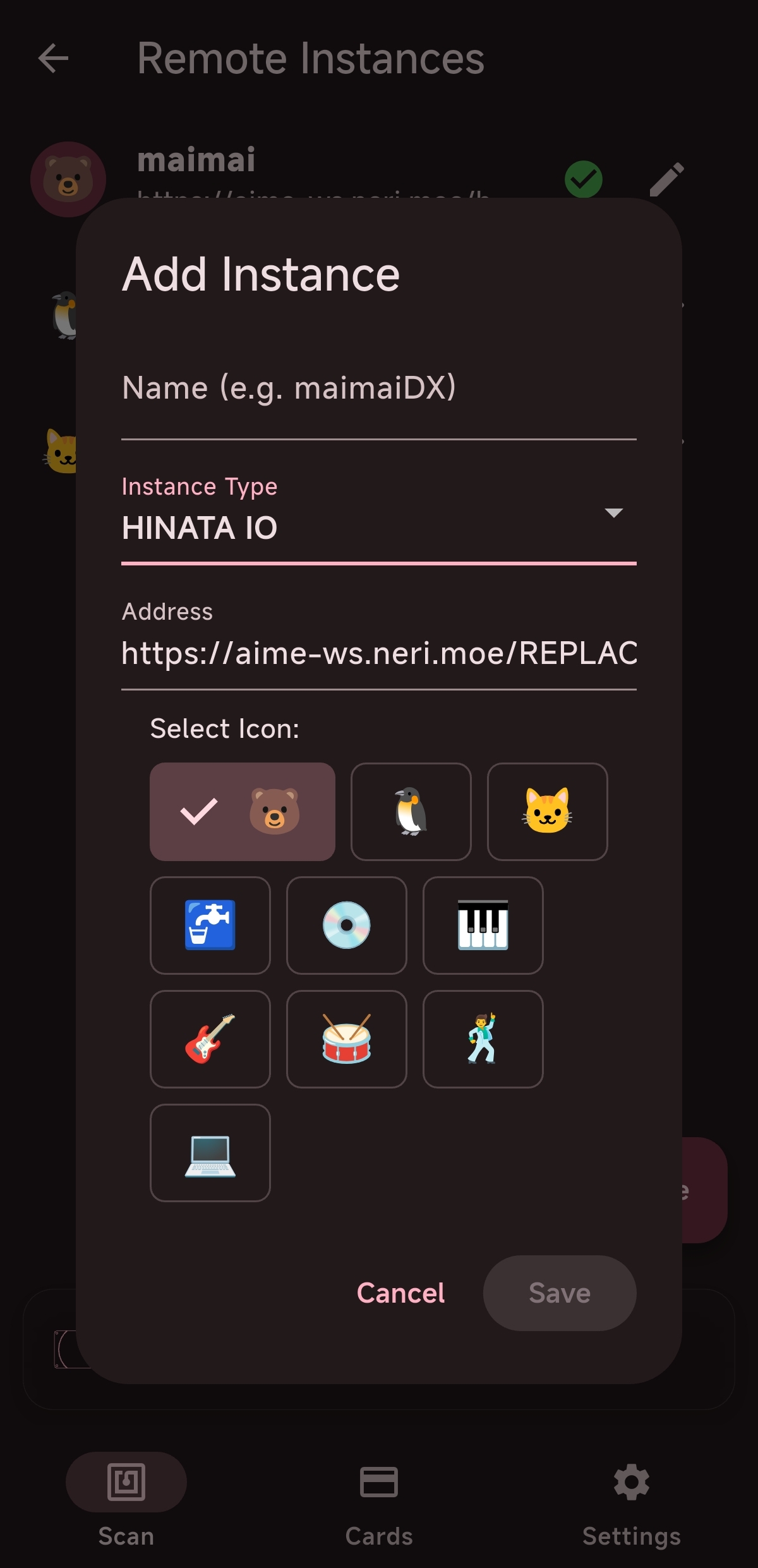
Start the game and play.
KONAMI Game Configuration
SpiceAPI
Currently, no forwarding server has been set up for SpiceAPI, so it can only be used on a local network. You can also use cloudflared to forward it yourself.
- Run
spicecfg.exe. - Find the SpiceAPI configuration, set the port, and leave the password blank.
- Add an Instance in HINATA Go and set the URL to
<Your_IP_Address>:<Spice_Listening_Port>, for example192.168.0.114:1145. Do not includehttp://.
Send Card Number to Game
Normal Mode
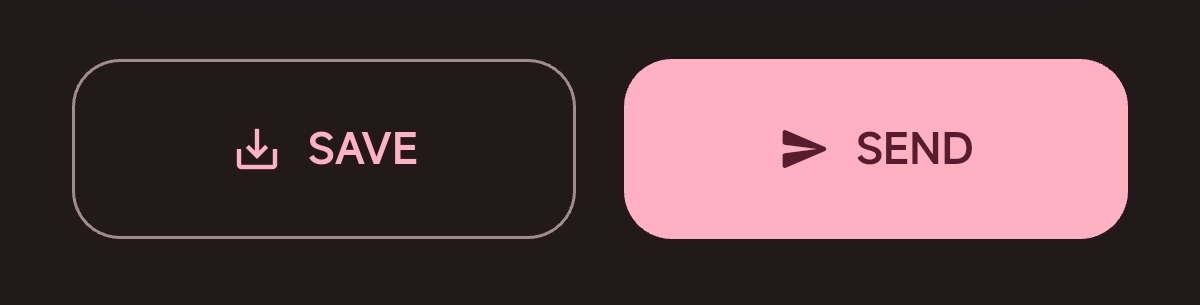
After scanning a card in Normal Mode (Card Information Viewer screen), scroll down to find two buttons. Tap the Send button on the right, and select the target instance to send the card number to the game.
Sender Mode
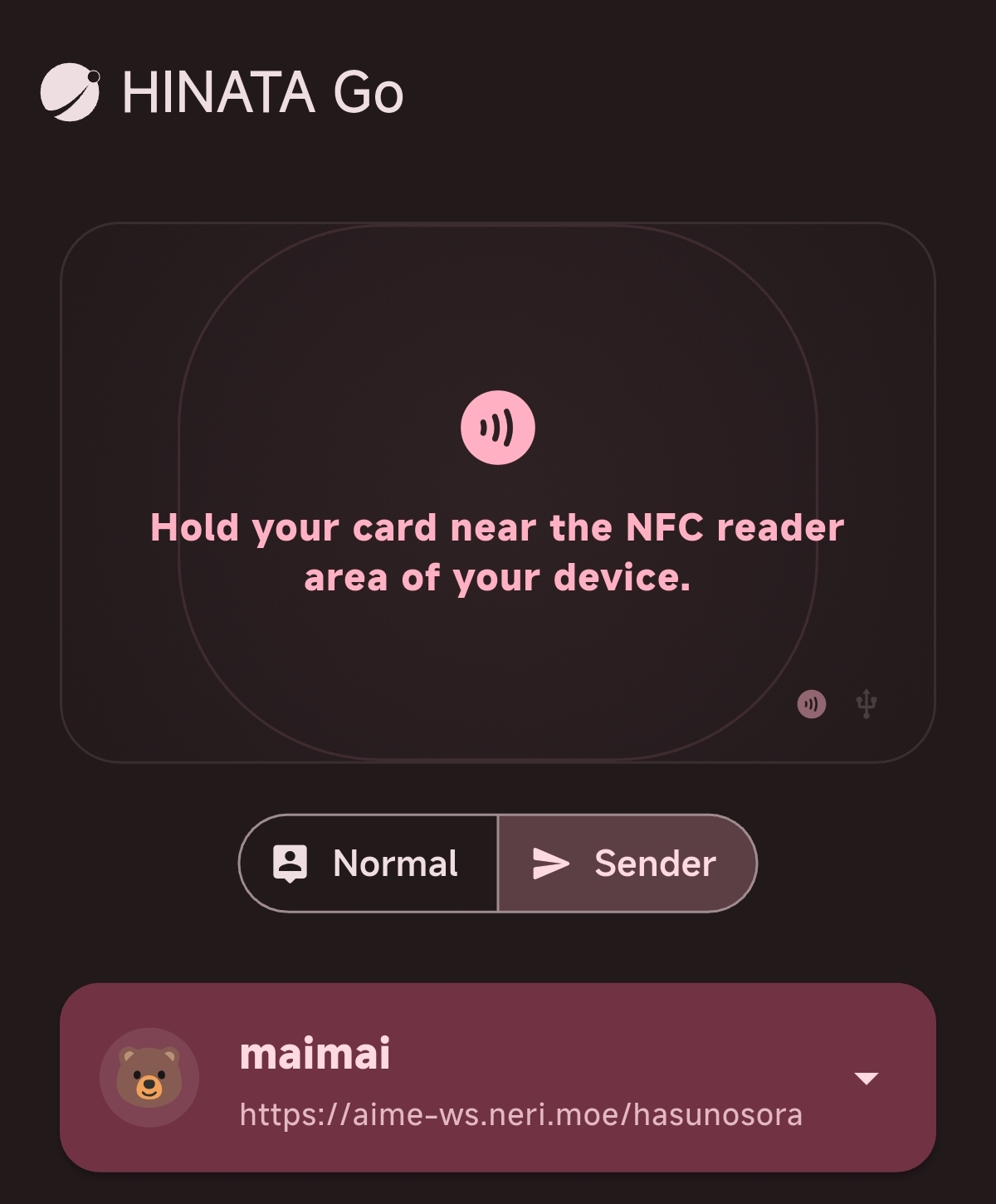
Switch to the Sender Mode tab in HINATA Go, and select the active game instance. In this mode, scanning a card via the device's built-in NFC, QR/barcode scan, or a connected external HINATA card reader will send the card number automatically and in real time to the selected instance without any manual steps.