Skip to content

HINATA Control Center

Introduction

The HINATA Control Center is used to control the various settings of HINATA and for writing cards.

No local download is required, just connect to the internet and visit cc.neri.moe to use it!
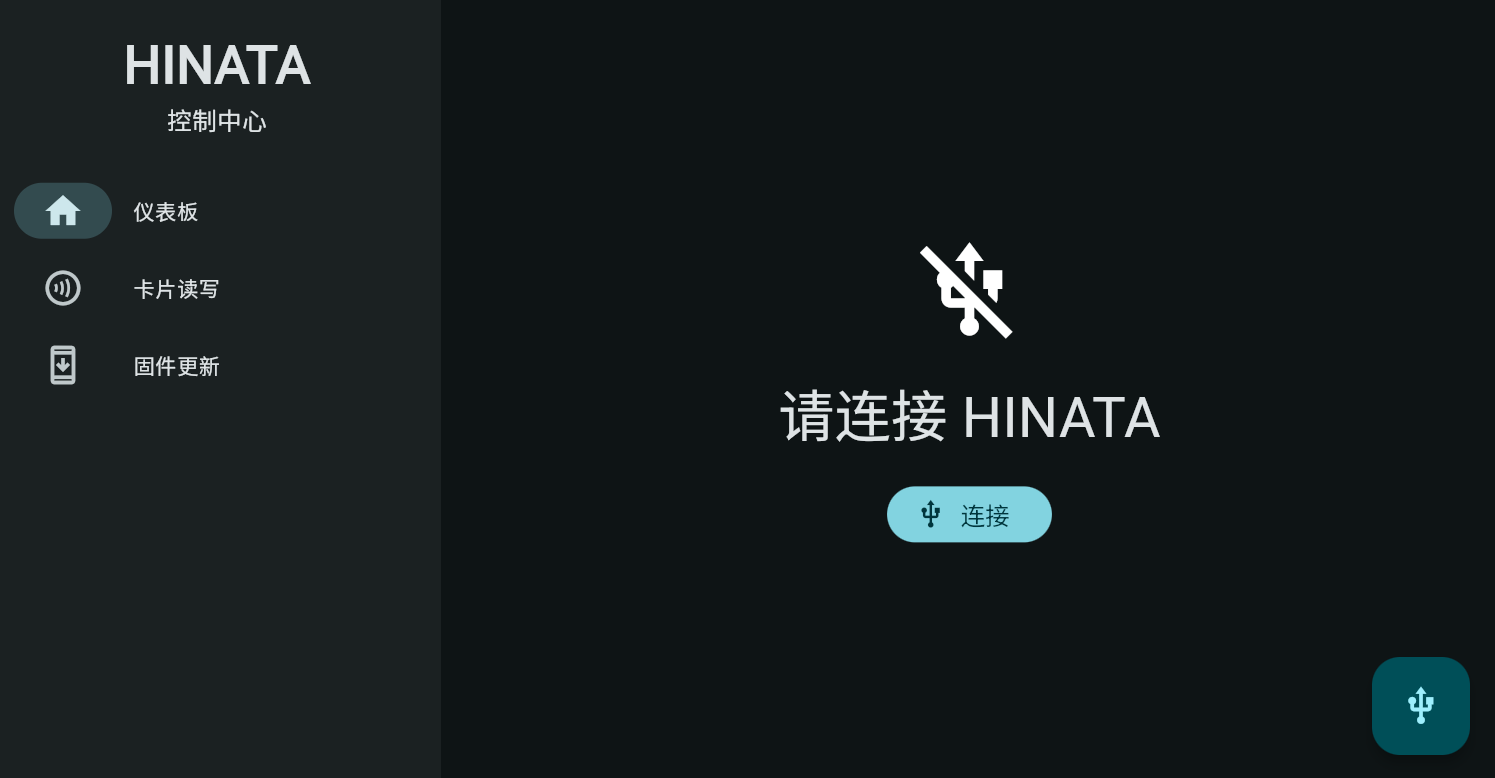
hcc

Connection

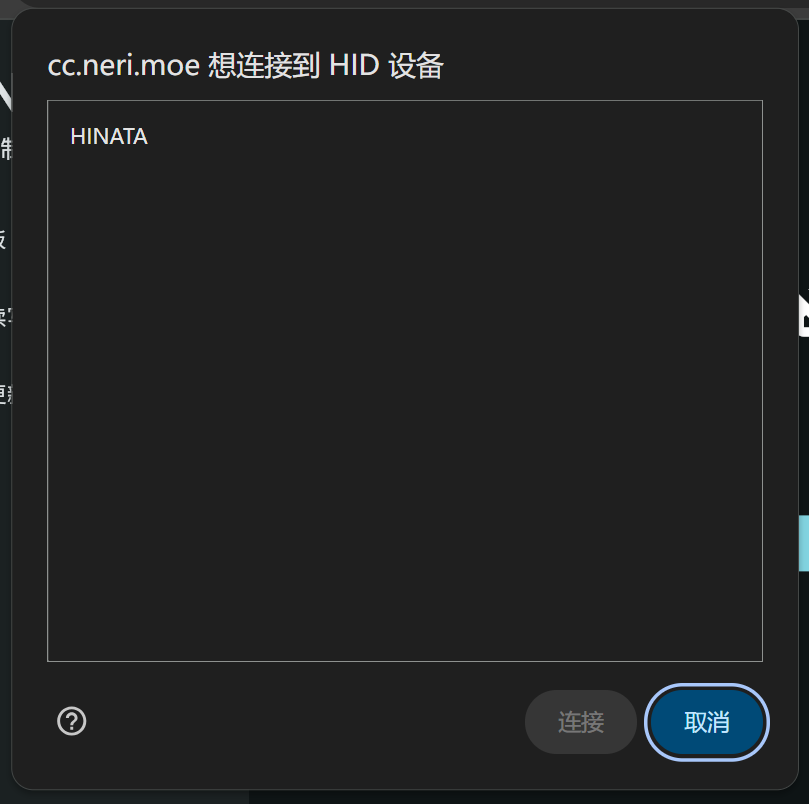
Click the Connect button or the button in the lower right corner, and the browser will pop up the following window (taking Chrome as an example):
connect

Please click on HINATA and then click the Connect button.

Dashboard

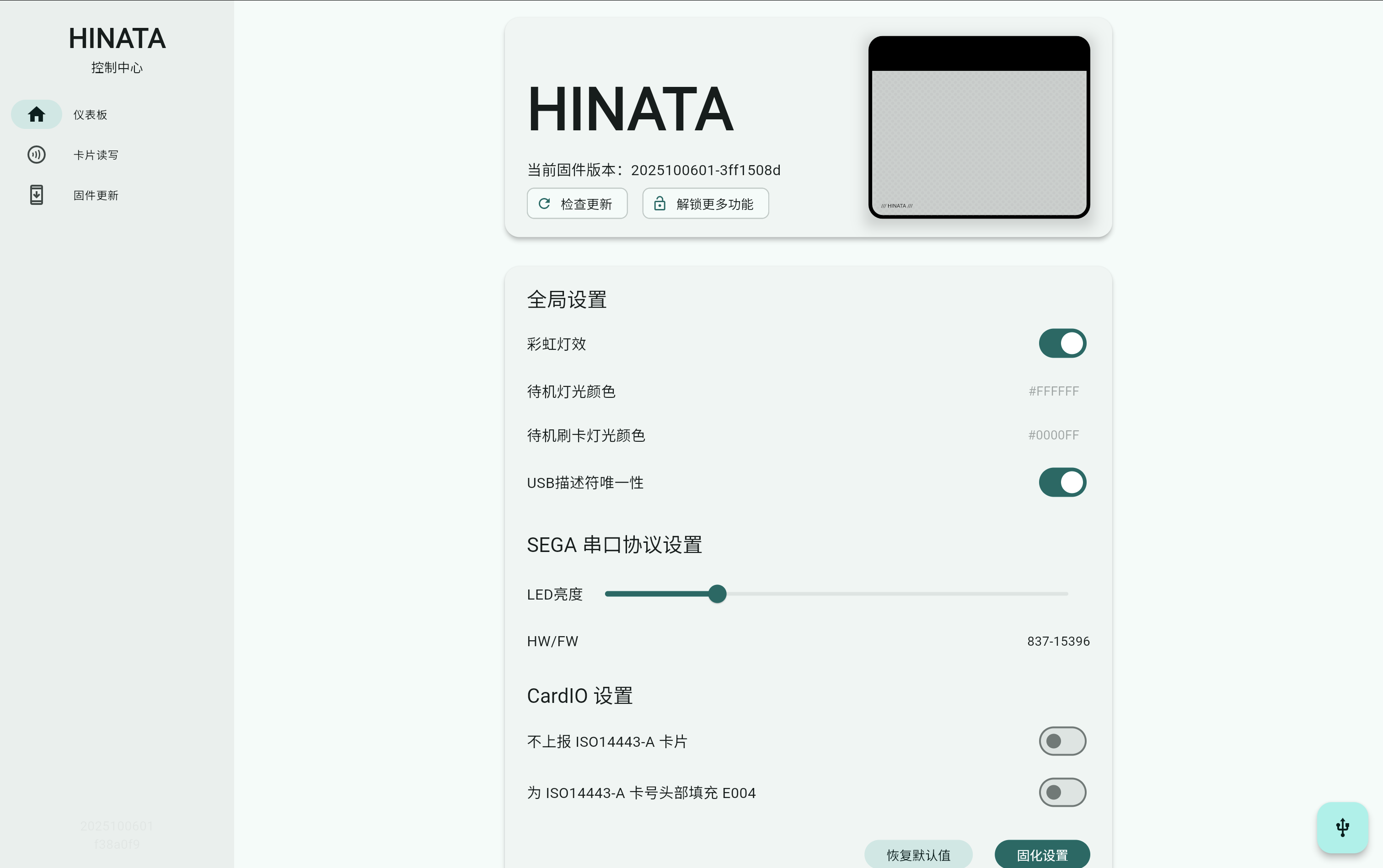
The dashboard displays the current firmware version of the card reader and allows you to adjust settings. dashboard
Card Reading and Writing

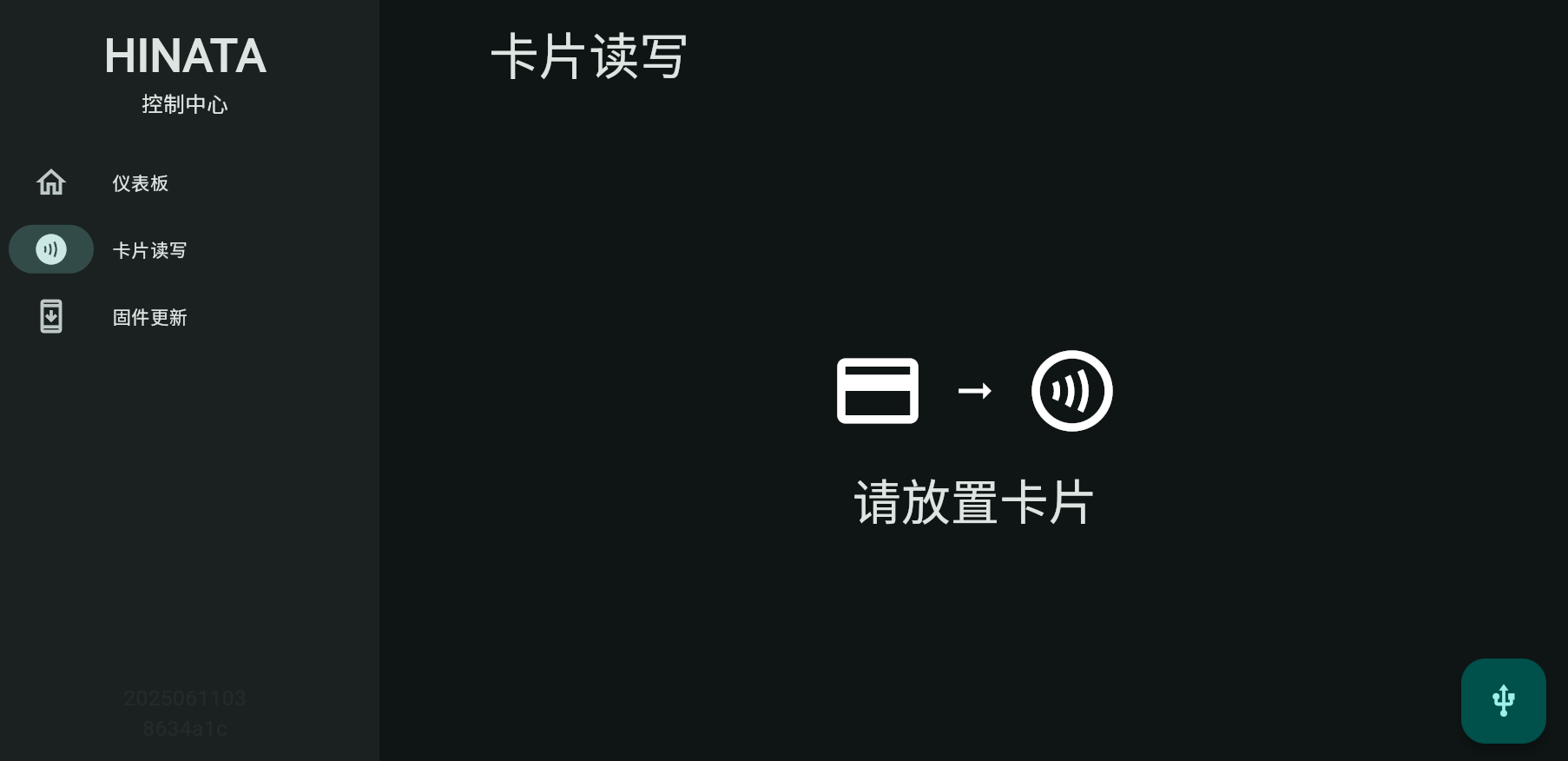
After the following interface appears, please place the card to be read or written on the card reader.
card1

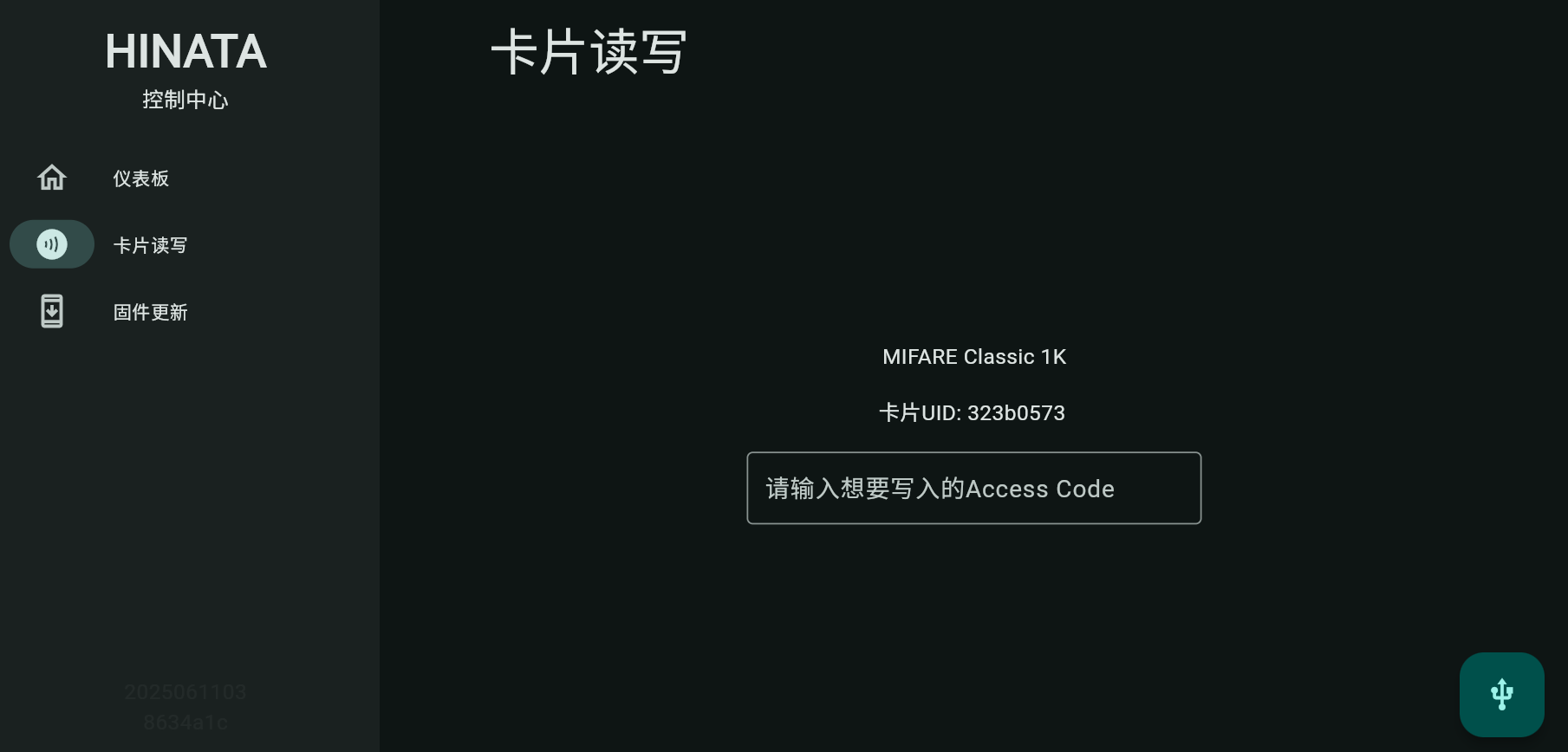
After placing the card, the following interface will appear. To write a card, please enter the 20-digit Access Code into the input box and press Enter to write the card number. If there is no dialog box for card number input, it means the card does not support writing.
card2

Firmware Update

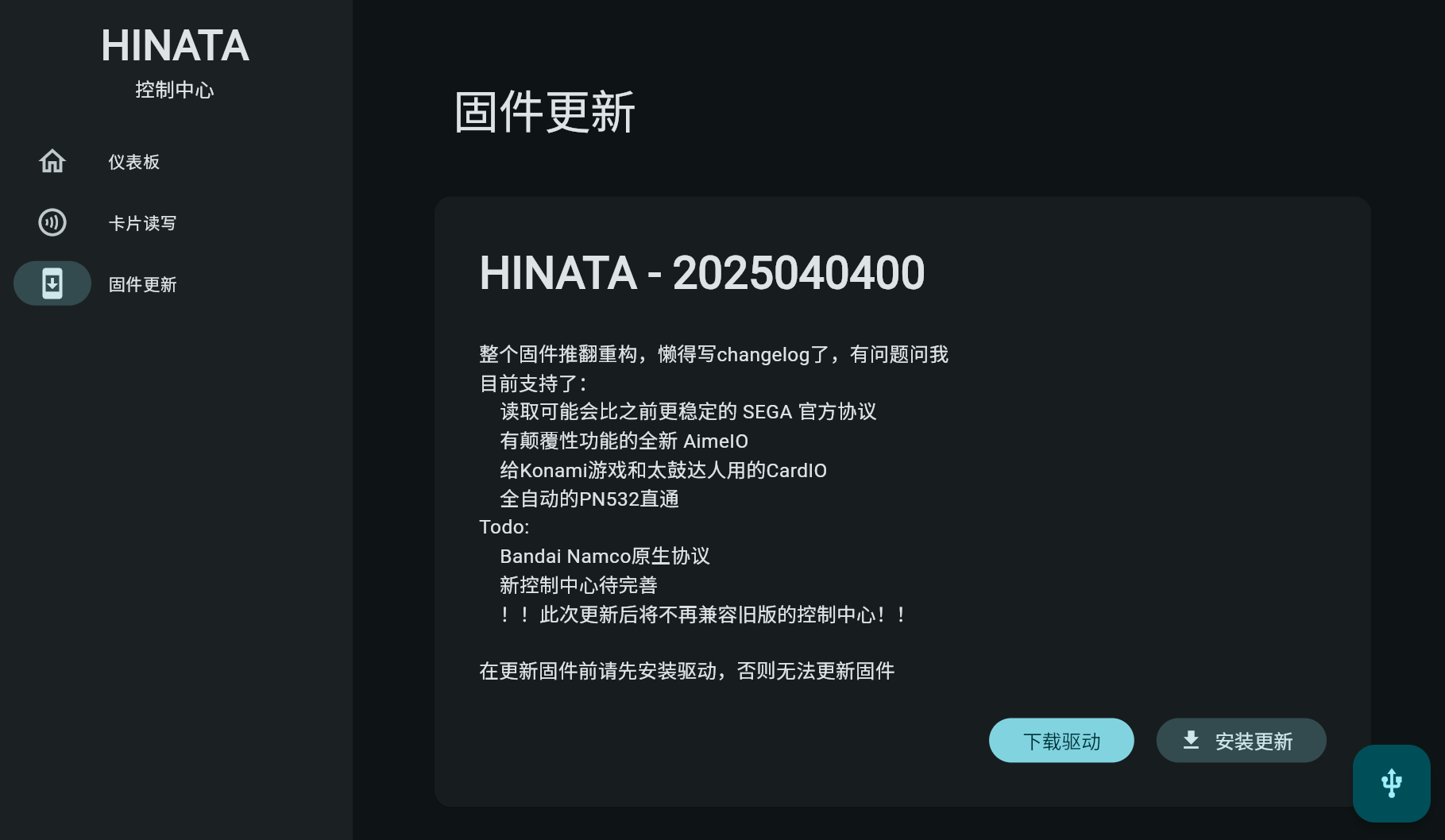
The current version does not support firmware updates through the Control Center on Windows. Please download the firmware and update it manually.
If you are using MacOS, Linux, ChromeOS, or other systems, you can update directly on the webpage.
update

Click the Install Update button in the lower right corner of the card to update the firmware.

Layout Switch

Adjust the layout style of VitePress to adapt to different reading needs and screens.

Expand all
The sidebar and content area occupy the entire width of the screen.
Expand sidebar with adjustable values
Expand sidebar width and add a new slider for user to choose and customize their desired width of the maximum width of sidebar can go, but the content area width will remain the same.
Expand all with adjustable values
Expand sidebar width and add a new slider for user to choose and customize their desired width of the maximum width of sidebar can go, but the content area width will remain the same.
Original width
The original layout width of VitePress

Page Layout Max Width

Adjust the exact value of the page width of VitePress layout to adapt to different reading needs and screens.

Adjust the maximum width of the page layout
A ranged slider for user to choose and customize their desired width of the maximum width of the page layout can go.

Content Layout Max Width

Adjust the exact value of the document content width of VitePress layout to adapt to different reading needs and screens.

Adjust the maximum width of the content layout
A ranged slider for user to choose and customize their desired width of the maximum width of the content layout can go.

Spotlight

Highlight the line where the mouse is currently hovering in the content to optimize for users who may have reading and focusing difficulties.

ONOn
Turn on Spotlight.
OFFOff
Turn off Spotlight.